
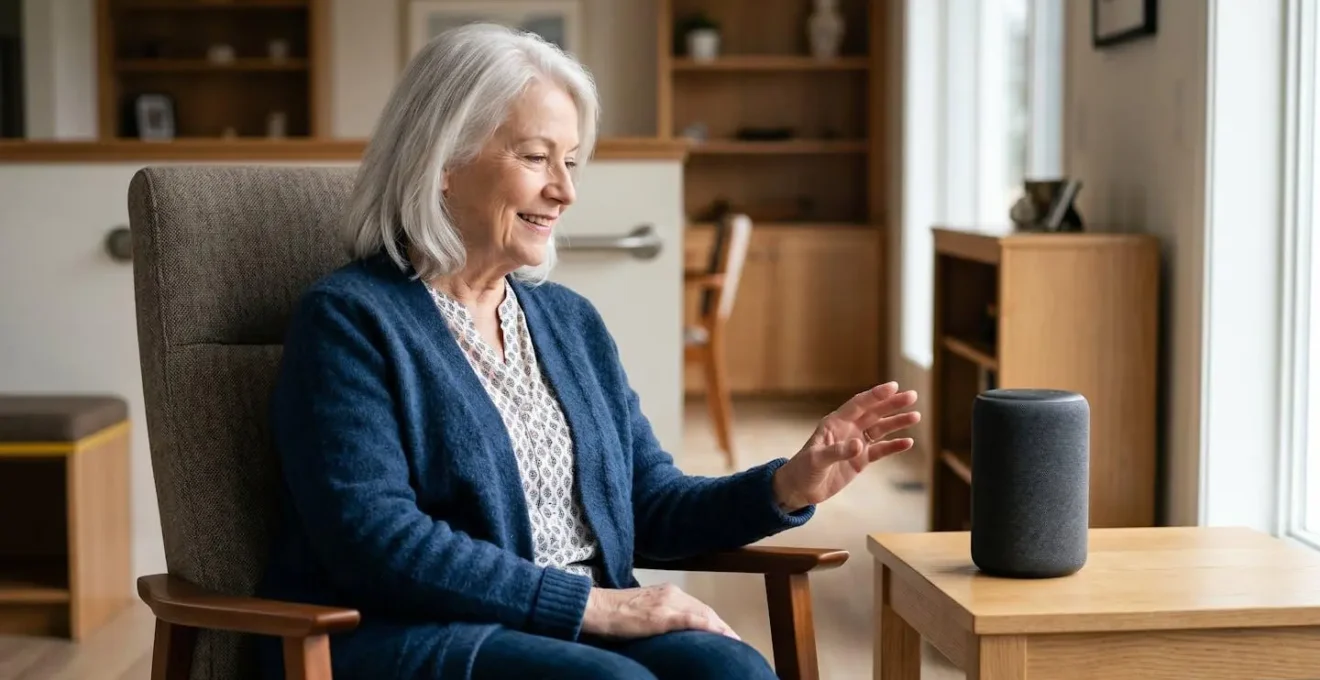
The effectiveness of a voice assistant for a senior isn’t about brand, but about meticulously configuring its response to specific user needs and home environments.
- Success hinges on optimising for “acoustic friction”—factors like regional accents, quiet speech, and background noise from a TV.
- Features like “Drop In” and automated routines offer profound safety benefits that surpass traditional alert systems, but require careful privacy setup.
Recommendation: Instead of choosing a device, focus on building an ecosystem. Analyse the user’s specific challenges (hearing, mobility, dexterity) and implement the targeted routines and settings detailed in this guide.
The promise of voice assistants for seniors is compelling: a world where medication reminders, family calls, and emergency help are just a spoken command away. Companies like Amazon and Google market their Echo and Nest devices as gateways to effortless independence. However, for many seniors across the United Kingdom, particularly those with regional accents or softer voices, this promise often dissolves into a cycle of frustrating misunderstandings. The question isn’t simply “which device is better?” but a more critical, technical one: which system possesses the superior intent recognition threshold to overcome the real-world “acoustic friction” of a senior’s daily life?
As a voice user interface researcher, I’ve seen that the common advice—”just set reminders” or “use it to call family”—-barely scratches the surface. It ignores the crucial setup and environmental factors that determine success or failure. This analysis moves beyond the marketing claims. We will deconstruct the underlying technology and user experience, comparing Amazon Echo and Google Nest not on their advertised features, but on their practical performance for a UK senior. We will examine how to program life-critical reminders, the overlooked safety net of features like “Drop In,” and why the physical placement of the device can be more important than the device itself. The goal is to provide a blueprint for turning a smart speaker from a novelty gadget into a genuine, reliable lifeline.
This guide will explore the critical configurations and strategic uses of voice assistants, providing a clear path to harness this technology effectively for senior independence and safety. The following sections break down the most impactful features, from essential reminders to advanced safety routines.
Summary: Amazon Echo vs Google Nest for Seniors: A Voice UI Researcher’s Guide
- How to program “Alexa, remind me to take the blue pill at 9”?
- Why “Drop In” features are a lifeline if you fall out of reach of the phone?
- Audiobooks vs Radio: accessing content without small buttons?
- The mistake of placing the device too close to the TV (false activations)
- How to create a “Goodnight” routine that turns off all lights and plugs?
- Siri vs Typing: which is faster for arthritic hands to send a message?
- How to adjust “Accessibility” settings on iPhone to boost call volume?
- The Red Button stigma: why 60% of seniors refuse to wear their fall pendant?
How to program “Alexa, remind me to take the blue pill at 9”?
Medication adherence is one of the most critical challenges in senior care. The consequences of error are severe, with over 400,000 emergency department visits annually attributed to medication mistakes among older adults. Voice assistants offer a powerful, audible solution that bypasses the need for visual acuity or manual dexterity with pill organizers. The key is programming the reminders with precision and clarity, making them impossible to ignore.
Both Alexa and Google Assistant excel at this, but Alexa’s system is often lauded for its robust, multi-step reminder options that can be managed remotely by a caregiver. This allows a family member to set up, monitor, and adjust medication schedules from their own smartphone, providing an essential layer of oversight. The process involves more than just setting an alarm; it’s about creating a specific, informative, and actionable prompt. A simple “ding” can be easily dismissed, but a clear voice stating, “It’s 9 AM, time to take your blue blood pressure pill with water,” is a direct and effective intervention.
This remote management capability transforms the device from a personal tool into a collaborative caregiving platform. It empowers caregivers to ensure adherence without being physically present, a crucial factor for maintaining a senior’s independence while ensuring their safety.
The following steps outline how to create a detailed medication reminder using the Alexa app, a process that can be mirrored with similar steps in the Google Home app. Note the ability to specify the exact wording and choose which device announces it.
Step-by-Step Guide: Setting Up Alexa Medication Reminders
- Open the Alexa app on your phone or tablet (download free from App Store or Google Play)
- Tap ‘More’ at the bottom of the screen, then select ‘Reminders’
- Tap ‘Add Reminder’ (or the + sign in the top-right corner)
- Type the exact message Alexa will say, e.g., ‘Time to take your blood pressure pill with water’ or ‘Take your blue pill’
- Set the time and frequency: tap ‘Date & Time’, then select ‘Repeat’ and choose ‘Every Day’ for daily medications
- Select which Echo device will announce the reminder (choose the room where you take medication)
- Tap ‘Save’ to activate the reminder
Why “Drop In” features are a lifeline if you fall out of reach of the phone?
The “Drop In” feature, primarily associated with Amazon Echo devices, is one of the most powerful yet controversial tools in the senior care arsenal. It functions as an instant, two-way audio (and video on Echo Show devices) connection between permitted contacts, crucially, without requiring the recipient to answer the call. After a short chime and a “frosted glass” visual preview, the connection is live. While this raises immediate privacy questions, its value in an emergency scenario cannot be overstated.
Imagine a senior falls and cannot reach their phone or a pendant button. With Drop In enabled for a trusted caregiver, that caregiver can instantly connect to the device in the senior’s home, assess the situation visually and audibly, and call for help. This bypasses the most common point of failure in emergency response: the inability of the injured person to activate a device. As a privacy and technology analysis from SlashGear’s Privacy Settings Review notes, “Drop In allows you to video call a trusted friend without them confirming the call, connecting you after a few seconds. Amazon says this feature is designed for parents checking in on their babies or to make chatting with elderly parents simple.”
Case Study: The Power of Instant Visual Verification
A caregiver 400 miles away from their mother discovered the critical value of Drop In when their mother stopped answering phone calls. After calling multiple neighbors to check on her, they found her in a diabetic coma. Had an Echo Show with Drop In been configured, the caregiver could have immediately used the voice command ‘Drop In on Mom’s Living Room’ and visually confirmed the emergency within seconds, potentially calling for help sooner. This incident, documented by Senior Home Central, demonstrates how Drop In bypasses the need for the senior to answer, connecting instantly for emergency welfare checks.
Understanding the difference between Drop In, a regular call, and a broadcast is essential for caregivers. Each has a specific use case, privacy level, and interaction model.
This table breaks down the key distinctions between the communication methods available on most smart speaker platforms, highlighting why Drop In is uniquely suited for urgent welfare checks.
| Feature | Drop In | Broadcast | Regular Calling |
|---|---|---|---|
| Connection Type | Instant, no answer required | One-way announcement | Requires recipient to answer |
| Best Use Case | Emergency checks, welfare verification | Quick announcements (‘I’m on my way!’) | Two-way conversations |
| Privacy Level | Low (instant access), must enable per contact | Medium (voice only, no visual) | High (recipient controls acceptance) |
| Visual Component | Yes, with Echo Show devices | No, audio only | Yes, with compatible devices |
| Setup Complexity | Moderate (requires permission configuration) | Simple (built-in feature) | Simple (contact list only) |
| Indicator for Senior | Green pulsing light, short chime, brief ‘frosted glass’ preview | Alexa announces ‘You have an announcement’ | Ringing tone, requires verbal acceptance |
Audiobooks vs Radio: accessing content without small buttons?
For seniors, especially those with arthritis, vision impairment, or reduced mobility, the simple act of changing a radio station or handling a book can become a significant challenge. Voice assistants completely remove this physical barrier, providing on-demand access to a near-infinite library of audio content. This is more than just entertainment; it’s a vital tool for mental engagement and emotional well-being. The ability to simply say, “Alexa, play BBC Radio 4” or “Hey Google, read my book ‘The Thursday Murder Club'” is transformative.
The cognitive benefits are well-documented. Engaging with complex narratives, whether through reading or listening, is a powerful form of mental exercise. In fact, research by the Rush Memory and Aging Project found a 32% slower rate of cognitive decline in mentally active seniors. Audiobooks provide this stimulation without the physical strain of holding a book or the visual strain of reading small print. Furthermore, as a study published in PMC highlights, the benefits extend to mental health. The researchers concluded, ” Audio books affected the mental health components. Intergenerational programs like reading decreases the risk of social isolation and loneliness in the elderly.”
One of the most valuable, yet often underutilised, resources for UK seniors is the public library’s digital collection. Through apps like Libby and OverDrive, library card holders can borrow thousands of audiobooks for free. Once connected, these can be played directly through a smart speaker, creating a free, accessible, and endlessly varied source of companionship and mental stimulation.
Your Guide to Free Audiobook Access via Your Library
- Contact your local public library to obtain a library card (many offer free cards for seniors and homebound individuals).
- Download the Libby or OverDrive app to your smartphone or tablet from the app store.
- Open the app and find your library by searching its name or your postcode.
- Sign in using your library card number and PIN (usually found on the back of the card).
- Browse the extensive audiobook collection and tap ‘Borrow’ on any title you like.
- Link the Libby skill in your Alexa or Google Home app to enable voice commands.
- Simply say, “Alexa, play my audiobook from Libby,” to start listening hands-free.
The mistake of placing the device too close to the TV (false activations)
A common source of frustration for new voice assistant users is “false activations,” where the device wakes up and tries to respond to dialogue from a television show or radio. This issue is a classic example of “acoustic friction” and is almost always caused by improper device placement. Placing an Amazon Echo or Google Nest directly beside the TV creates an acoustically confusing environment. The device’s microphones struggle to distinguish between a direct command from the user and a stray wake word (“Alexa,” “Hey Google”) uttered by an actor on screen.
The solution lies in understanding and creating a “Goldilocks Zone” for the device. This is the optimal location that is not too close to sources of ambient noise (like a TV or kitchen appliances) but not too far from the user’s typical position. The goal is to maximize the clarity of the user’s voice command while minimizing interference. This often means placing the device on a side table next to a favorite armchair or on a bedside table, rather than on the main entertainment unit.
From a UI research perspective, optimal placement is about improving the signal-to-noise ratio for the microphone array. Soft furnishings like curtains, carpets, and upholstered furniture absorb sound and reduce echo, further improving the device’s ability to accurately hear and interpret commands. An open space is always better than a tight corner, which can cause sound to bounce and muddle the command.
Achieving optimal performance requires a strategic approach to the home environment. Following a checklist can help identify and create this “Goldilocks Zone” in any room.
Checklist for Optimal Smart Speaker Placement
- TV Distance: Is the speaker at least 3-4 feet away from the television to prevent false activations?
- Acoustic Environment: Is the device placed in an open area, away from corners and enclosed shelves that create echo?
- User Proximity: Is the speaker within 10-15 feet of where the user typically sits or rests?
- Optimal Height: Is the device placed at roughly ear-level when the user is seated (e.g., on a side table)?
- Noise Sources: Is the speaker at least 6 feet away from other noise sources like kitchen appliances, fans, or heating vents?
How to create a “Goodnight” routine that turns off all lights and plugs?
The true power of a voice assistant ecosystem is unlocked through “Routines.” A routine is a single voice command that triggers a sequence of multiple actions across different smart devices. For a senior, a well-designed “Goodnight” routine is more than a convenience; it’s a powerful safety and security feature. With a single phrase like “Alexa, goodnight,” a senior can initiate a sequence that turns off all the main lights, leaves a low-level nightlight on the path to the bathroom, ensures the smart TV plug is off, lowers the thermostat to a comfortable sleeping temperature, and even locks the smart front door.
This automation eliminates the physical-and-mental checklist of tasks before bed, reducing the risk of leaving a heater on or a door unlocked. For a person with mobility challenges, it removes the need for a final, often tiring, tour of the house to switch things off. But the most innovative application of this feature is as a tool for passive wellness monitoring by a remote caregiver.
A caregiver can set up an alert on their own phone that notifies them if the “Goodnight” routine has *not* been run by a certain time, say 11 PM. This non-intrusive check-in provides peace of mind without making the senior feel like they are being constantly watched. It’s a silent, digital safety net that respects independence while providing crucial oversight. A real-world example perfectly illustrates this concept.
Testimonial: Routines as a Caregiver’s Peace of Mind
A caregiver shared their strategic use of morning and evening routines for passive wellness monitoring: “The Good Morning routine is the one that gives me real peace of mind. Mom says ‘Good Morning’ to Alexa, which triggers lights, news, and her medication reminder. But I set a rule in the app: if the Good Morning routine hasn’t run by 10 AM, I get an alert on my phone. It’s non-intrusive—she doesn’t feel watched—but I know within hours if something might be wrong. It’s worked perfectly for 8 months now.”
Building such a routine is straightforward within the Alexa or Google Home app and can be customized to an incredible degree. It involves linking various smart devices (plugs, bulbs, locks, thermostats) and sequencing their actions in a logical order.
Siri vs Typing: which is faster for arthritic hands to send a message?
For seniors suffering from arthritis, rheumatism, or other conditions affecting dexterity, the modern smartphone can be a source of pain and frustration. Typing a simple text message on a small glass screen is a significant challenge. This is where voice dictation becomes not just a convenience, but a necessary accessibility tool. While Siri on an iPhone is a capable dictation tool, comparing it directly to manual typing misses a third, often superior, option for home use: the stationary smart speaker.
The act of finding the phone, unlocking it, opening the messaging app, and then holding it to dictate a message still involves several physical steps. For a quick message from home, it is often far faster and easier to simply use the room’s smart speaker. A command like, “Alexa, tell my daughter I’m ready to be picked up,” can trigger a text message or an “Announcement” on the daughter’s own Alexa app. This process is completely hands-free and requires no interaction with a physical device.
For messages at home, saying ‘Alexa, tell my daughter I’m ready’ is often far easier than even finding the phone to activate Siri.
– Senior Technology Guide Analysis, Alexa For Seniors – Stoneridge Communities
The choice of method depends entirely on the context and the user’s physical condition. For a detailed, private message sent from outside the home, Siri dictation is the clear winner over painful typing. But for quick, in-home communication, the smart speaker often provides the most frictionless experience. A technical comparison reveals a clear hierarchy of ease-of-use for someone with arthritic hands.
This comparative table evaluates different voice messaging methods based on their suitability for seniors with dexterity challenges, providing a clear framework for choosing the right tool for the job.
| Method | Setup Complexity | Speed | Precision | Best Use Case | Arthritis Friendliness |
|---|---|---|---|---|---|
| Smart Speaker Announcement (Alexa/Google Home) |
Low | Fastest (5-10 seconds) | Medium (pre-set contacts) | Quick status updates at home (‘I’m ready’, ‘Call me’) | ★★★★★ No hand use required |
| Smart Speaker Voice Call | Low | Very Fast (immediate) | High (natural conversation) | Nuanced discussions, complex topics | ★★★★★ Completely hands-free |
| Siri Voice Dictation | Medium (requires phone proximity) | Fast (15-30 seconds) | High (with punctuation commands) | Precise written messages, scheduling | ★★★☆☆ Requires phone holding/positioning |
| Manual Typing | Low | Slowest (60+ seconds) | High (visual editing) | When voice recognition fails | ★☆☆☆☆ Most painful for arthritis |
How to adjust “Accessibility” settings on iPhone to boost call volume?
While stationary smart speakers are excellent for in-home use, the smartphone remains the primary tool for communication on the go. For seniors with mild to moderate hearing loss, standard phone call volume is often insufficient, especially in noisy environments. Before investing in expensive specialised hardware, it’s crucial to explore the powerful and often-overlooked Accessibility settings built directly into every iPhone. These software enhancements can dramatically improve the listening experience.
Features like “Headphone Accommodations” allow the user to upload an audiogram or answer a series of questions to create a custom audio profile that boosts the specific frequencies where their hearing is weakest. “Mono Audio” is another simple but effective tool; it combines the left and right audio channels, ensuring the user hears everything even if they have better hearing in only one ear. For visual reinforcement, the “LED Flash for Alerts” provides a bright, flashing light for incoming calls, impossible to miss even if the ringer isn’t heard.
The synergy between the smartphone and smart speakers also provides solutions. A user can pair their iPhone to an Amazon Echo or Google Nest via Bluetooth, effectively turning the smart speaker into a powerful, high-volume speakerphone. Answering a call then becomes as simple as saying, “Alexa, answer call.” This hands-free solution provides the volume and clarity needed for comfortable conversation. The adoption of these technologies is growing, with AARP research showing that 29% of adults ages 50 and over now own a digital assistant, creating a larger ecosystem of connected devices.
Mastering these settings can make the difference between a frustrating, isolating experience and clear, confident communication. The key is knowing where to find them.
Key iPhone Accessibility Settings for Hearing
- Boost Call Volume: Go to Settings > Accessibility > Audio/Visual. Here you can enable ‘Mono Audio’ if hearing is stronger in one ear and toggle ‘Phone Noise Cancellation’ to manage background sounds.
- Visual Call Alerts: In the same Audio/Visual menu, toggle ON ‘LED Flash for Alerts’ to get a visual cue for incoming calls.
- Custom Audio Profiles: Under Audio/Visual, turn on ‘Headphone Accommodations’. This allows you to customize audio output for your specific hearing profile, either from an audiogram or through guided tests.
- Use Phone as a Microphone: Activate ‘Live Listen’ via the Control Center. In a noisy room, place your iPhone near the person speaking, and the audio will stream directly to your compatible hearing aids or AirPods.
- Route Calls to Speaker: Pair your iPhone to your smart speaker via Bluetooth. When a call comes in, you can answer it hands-free and use the speaker’s powerful drivers for a loud, clear conversation.
Key takeaways
- The “Red Button Stigma” is a real phenomenon; many seniors reject traditional pendants because they feel they are a visible symbol of frailty.
- Voice-activated emergency calling (e.g., Alexa Emergency Assist) offers a discreet, stigma-free alternative that is integrated into a mainstream device.
- Unlike pendants, voice assistants provide coverage within hearing range of devices throughout the home, reducing the risk of being out of reach after a fall.
The Red Button stigma: why 60% of seniors refuse to wear their fall pendant?
The personal emergency response pendant—the “red button”—has been the gold standard in senior safety for decades. Yet, its adoption rate remains stubbornly low. The primary reason is not cost or technology, but a powerful psychological barrier: the Red Button Stigma. For many active and independent seniors, wearing a visible medical alert device feels like a public declaration of frailty and vulnerability. It’s a constant, physical reminder of dependency, and as a result, it is often left on a bedside table rather than worn, rendering it useless in an emergency.
This is where voice assistants present a revolutionary, stigma-free alternative. An Amazon Echo or Google Nest is a mainstream consumer device, present in millions of homes and associated with music, news, and convenience, not medical emergencies. This complete lack of medical stigma is its greatest strength. A service like Alexa Emergency Assist provides 24/7 hands-free access to a dedicated urgent response center. As the official documentation explains, ” When a user says, ‘Alexa, call for help,’ their Echo will automatically trigger a call to an emergency monitoring center. Similar to a medical alert bracelet, the monitoring center will communicate with the user, assess the situation, and deploy the proper response.”
Study: Voice Assistants Reduce Isolation and Increase Safety Confidence
A pilot study from the University of Nebraska-Lincoln evaluated Amazon Echo devices with adults aged 75+ living independently. While the primary goal was measuring loneliness, a key secondary benefit emerged: participants reported feeling safer knowing they could call for help hands-free if they fell. Unlike pendants that require a physical button press (which may be impossible if injured or the pendant is out of reach), voice commands worked from anywhere within hearing range of a device. The study concluded that participants felt less socially isolated and more confident aging in place with this voice-activated safety net.
The comparison with traditional systems is stark. Voice assistants offer a discreet, multi-functional, and psychologically acceptable alternative for in-home emergency response.
This table compares the features of a traditional system with a voice-based subscription service like Alexa Together, highlighting the shift from a dedicated medical device to an integrated lifestyle solution.
| Feature | Traditional Fall Pendant | Alexa Together Service | Hybrid Approach |
|---|---|---|---|
| Activation Method | Physical button press | Voice command (‘Alexa, call for help’) | Both options available |
| Wearability Required | Yes (must wear 24/7) | No (stationary devices) | Pendant for outdoors, voice at home |
| Stigma Level | High (‘I look frail/medical’) | None (mainstream device) | Low (pendant hidden, voice primary) |
| Charging/Maintenance | Weekly charging, battery replacement | Plugged in continuously | Both maintenance needs |
| Coverage Area | Entire property + outdoors | Within home (hearing range of devices) | Complete coverage |
| Emergency Response | 24/7 monitoring center | Urgent Response (with subscription) + caregiver alerts | Dual-system redundancy |
| Monthly Cost | $30-50/month | $19.99/month (Alexa Together) | Combined $40-60/month |
Ultimately, the choice between Amazon Echo and Google Nest is less important than the strategic implementation of the system. The best solution is rarely a single device but an ecosystem thoughtfully tailored to an individual’s specific needs, accent, and home environment. By moving beyond a simple brand comparison and adopting a researcher’s mindset—focusing on reducing acoustic friction, building safety routines, and leveraging accessibility features—a voice assistant can be transformed from a frustrating gadget into an indispensable tool for independence and peace of mind.