
The right choice isn’t about which tablet has better specs; it’s about which platform allows you to proactively engineer a frustration-free experience for a tech-hesitant senior.
- Success depends on overcoming specific physiological barriers (like dry skin and arthritis) and reducing cognitive load (by removing clutter and passwords).
- A device is only as good as the human support system around it; features that enable remote family help are crucial for long-term adoption.
Recommendation: First, assess the senior’s specific physical and cognitive challenges, then choose the device that best eliminates those exact points of friction, whether out-of-the-box (GrandPad) or through careful customization (iPad).
You’ve decided to buy a tablet for an elderly parent or grandparent. It’s a wonderful thought, born from a desire to keep them connected. But a flicker of anxiety remains. You’re buying for someone who proudly “hates computers,” and you dread the thought of this well-intentioned gift gathering dust or, worse, becoming a source of endless, frustrating tech support calls. The common debate pits the feature-rich iPad against the purpose-built GrandPad, often boiling down to a simple list of pros and cons: more apps versus ultimate simplicity.
But this comparison misses the point entirely. As a digital inclusion trainer for seniors, I’ve learned that successful tech adoption for an 80-year-old beginner has almost nothing to do with features. It’s about aggressively eliminating every single potential point of frustration. The key isn’t choosing a device, but designing a complete, frustration-free digital environment. This means looking beyond the screen to understand the specific physiological and cognitive barriers that turn a simple tap into a moment of defeat. This guide will walk you through those real-world hurdles—from the science of touchscreens to the psychology of a cluttered home screen—to help you make a choice that fosters connection, not confusion.
This article provides a detailed comparison by tackling the real-world challenges faced by senior beginners. Below is a summary of the key areas we will explore to help you make the most informed and compassionate decision for your loved one.
Summary: GrandPad vs. iPad: A Frustration-Focused Comparison
- Why capacitive touchscreens fail dry senior skin and how a stylus helps?
- How to delete 90% of icons to leave only “Family” and “News”?
- Siri vs Typing: which is faster for arthritic hands to send a message?
- The error of writing PINs on the back of the device
- When to schedule the weekly Zoom to match the family’s Sunday routine?
- How a student can trade IT support for cooking lessons?
- Audiobooks vs Radio: accessing content without small buttons?
- Hearing loops and Bluetooth: connecting your hearing aids to the TV without blasting the volume?
Why capacitive touchscreens fail dry senior skin and how a stylus helps?
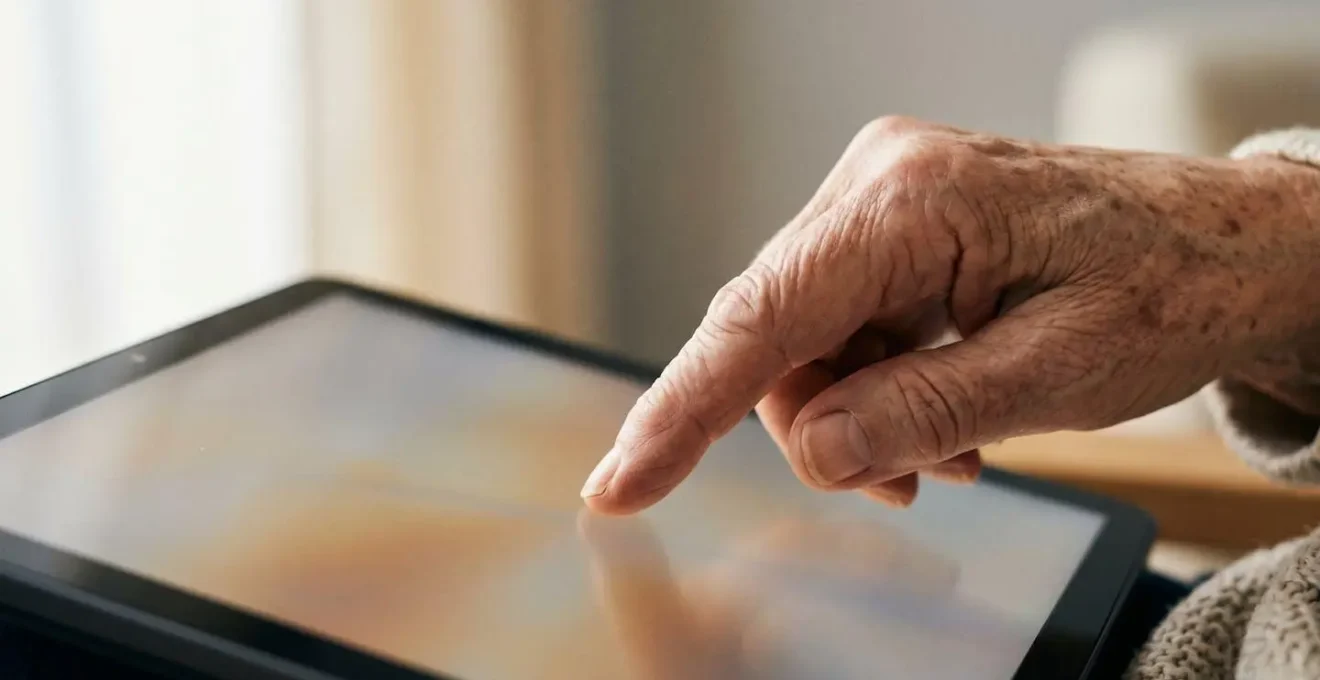
The first point of failure for many seniors isn’t confusion; it’s a simple, physical disconnect. A loved one repeatedly jabs at a button that refuses to respond, leading to the immediate conclusion: “I broke it,” or “This thing is broken.” The real culprit is often a physiological barrier. Modern capacitive touchscreens rely on the electrical conductivity of your skin to register a touch. As we age, our skin naturally becomes drier and less conductive. In fact, research reveals that up to 60% of seniors have dry skin, with some studies showing that figure climbing to over 99% in residential care settings.
This isn’t just a theory; it’s a documented technological failure. A 2023 study confirmed the existence of this barrier, finding that older adults frequently failed to activate touchscreen buttons even when they hit the target with perfect accuracy and force. The screen simply didn’t register their command. This proves that the frustration is real and rooted in technology that wasn’t designed with their physiology in mind. The simplest solution is to bypass the skin barrier entirely. A capacitive stylus with a broad, mesh tip acts as a conductive extension of the hand, providing a reliable way to interact with the screen. For an iPad, this is an essential accessory to purchase alongside the device. The GrandPad, designed with this issue in mind, often includes a stylus.
Understanding this physical barrier is the first step in building a frustration-free experience. It shifts the blame from the user to the technology and provides a clear, immediate solution.
How to delete 90% of icons to leave only “Family” and “News”?
After overcoming the physical barrier, the next hurdle is cognitive. A standard iPad home screen is a visual assault for a beginner: a grid of dozens of colorful, cryptic icons, notification badges demanding attention, and folders hiding even more complexity. This high cognitive load creates choice paralysis. When faced with too many options, a novice user often chooses to do nothing at all. The goal is to achieve radical interface minimalism, curating the screen to show only what is essential and removing everything else.
On an iPad, this is a manual but crucial setup process for the family member. It involves:
- Deleting unnecessary pre-installed apps (Stocks, Podcasts, Compass).
- Moving all but the two or three essential apps (e.g., Photos, Video Call, News) to the App Library, effectively hiding them from the home screen.
- Disabling notifications for all non-essential apps.
- Using large widgets for key information like weather or a photo frame, instead of small icons.
This transforms the iPad from a complex computer into a simple appliance dedicated to a few key tasks. The GrandPad, by contrast, is built on this principle from the ground up. As the TechRadar Editorial Team notes in their review, “GrandPad is supremely easy to use, with a dead simple interface featuring large icons and text.” It offers a curated, closed environment where the “Family” and “News” functions are front and center, with no risk of accidental app store purchases or complex settings menus.
Whether you choose the DIY approach with an iPad or the out-of-the-box simplicity of a GrandPad, the objective is the same: create a calm, uncluttered digital space that invites interaction rather than overwhelming the user.
Siri vs Typing: which is faster for arthritic hands to send a message?
For hands affected by arthritis, tremors, or a general loss of dexterity, typing on a glass screen is not just slow; it can be painful and frustrating. Each missed key or typo reinforces a feeling of inadequacy. This is where voice dictation becomes more than a convenience—it becomes a primary method of communication. For sending a message or searching for information, speaking a command is almost always faster and less physically taxing than typing.
Both the iPad (with Siri) and GrandPad offer robust voice command features. Training a senior to use them effectively is a key step in building their confidence. The command “Hey Siri, send a message to Jane” is far more achievable than navigating to the Messages app, finding the right contact, and pecking out a message. While voice assistants are becoming ubiquitous, with an estimated 8.4 billion devices expected in use by 2024, adoption among the very elderly can still be hesitant. A little practice and demonstrating its power can create a breakthrough moment.
Even with voice, some tapping is inevitable. For those with severe hand tremors or weakness, assistive tools are critical. A 2025 case study documented how a client with Parkinson’s disease was able to use her smartphone effectively with a stylus and an adaptive grip device. This setup allowed her to maintain vital connections with family. As research from the National Institute on Aging confirms, loneliness and social isolation are linked to serious health risks, making these tools for connection profoundly important.
The error of writing PINs on the back of the device
You’ve seen it before: a sticky note with a password written on it, attached to the very device it’s meant to secure. While it makes security experts cringe, it’s a perfectly logical solution for someone who struggles with memory. The “error” isn’t the user’s behavior; it’s the technology’s reliance on memorized codes as the sole gatekeeper. The single biggest step you can take to reduce frustration is to eliminate the need for a PIN or password entirely.
An iPad offers excellent biometric solutions. Setting up Face ID or Touch ID during the initial configuration means the user may never have to type a passcode again. The device simply opens when they look at it or touch the sensor. This is a non-negotiable step when setting up an iPad for a senior.
The GrandPad is designed around this philosophy from the start. As a Caring.com review points out, “The device doesn’t require the user to enter a password.” It operates in a secure, closed ecosystem where authentication is managed by the device’s inherent design, not by the user’s memory. This focus on a password-free environment is a significant advantage for users with any level of cognitive decline.
Your action plan: Secure alternatives to memorizing PINs
- Set up Face ID or Touch ID on the iPad during the initial setup to eliminate the need for PIN entry at unlock.
- Choose devices like GrandPad that are designed to operate in a completely password-free environment.
- Maintain a physical, secure notebook with all necessary passwords, kept by a trusted caregiver, not with the device.
- Use a shared, secure digital note (like in a password manager’s family plan) with a primary family contact containing device credentials.
- Enable biometric authentication within individual apps (like banking or health apps) whenever possible to reduce reliance on memorized codes.
When to schedule the weekly Zoom to match the family’s Sunday routine?
A tablet’s ultimate purpose is connection, and that connection often needs to be scheduled. The logistics of coordinating a family video call can be a significant barrier. A senior might forget the time, struggle to find the right app, or not know how to answer an incoming call. The most successful tech adoptions occur when the family can build a “digital scaffolding” around the user to proactively manage these logistics.
This is where a remote administration feature becomes a game-changer. With an iPad, this can be partially achieved through shared calendars and setting up recurring events with alerts. A family member can send a calendar invite for the “Sunday Family Chat” at 4 PM, and a reminder will pop up on the iPad. However, the user still needs to navigate to the notification and open the correct app.
The GrandPad’s ecosystem is built for this. As SeniorLiving.org highlights in a review, “GrandPad’s integrated family admin portal allows a caregiver to remotely add events and reminders.” A family member can use a companion app on their own phone to schedule a video call, and at the appointed time, a simple “Join Call” button will appear directly on the GrandPad’s screen. This removes all the intermediate steps and potential points of failure, ensuring the connection just happens. It’s the digital equivalent of a family member gently reminding them it’s time for the call.
Choosing a device that allows for this level of remote support transforms the tablet from an isolated piece of hardware into a seamlessly integrated part of the family’s communication routine.
How a student can trade IT support for cooking lessons?
The most robust support system isn’t an app or a feature; it’s a human being. While family members are the first line of defense, building a local, intergenerational support network can be incredibly powerful. This isn’t about charity; it’s about a value exchange. Many seniors possess a lifetime of skills—from cooking and baking to sewing, gardening, or woodworking—that are highly valued by younger generations.
Imagine this scenario: a local high school or college student needs volunteer hours or is looking to learn a practical skill. An arrangement is made where the student provides one hour of “tech tutoring” per week in exchange for a lesson on how to bake the perfect pie or tend a vegetable garden. This creates a powerful, symbiotic relationship that benefits both parties. It provides the senior with patient, in-person tech support while giving the student a valuable skill and a meaningful connection.
This model empowers the senior, turning them from a passive recipient of help into an active teacher and mentor. A wonderful example comes from a 78-year-old retirement home resident in Mississippi who, after learning online herself, began teaching her peers how to use computers and social media. This flips the script entirely, proving that with the right tools and motivation, seniors can become creators and leaders in their own digital inclusion. This kind of human connection is the most effective antidote to the health risks of loneliness.
Audiobooks vs Radio: accessing content without small buttons?
For many seniors, especially those with vision impairment or dexterity issues, consuming content should not require precise interaction with small buttons or complex menus. The traditional radio is a masterpiece of accessible design: a large knob to turn it on and change the volume. How can a tablet replicate this ease of access for a world of digital audio, like podcasts and audiobooks?
The answer, once again, is voice. As a research team at Tianjin Normal University noted in a recent study, “Voice interaction offers a more natural and straightforward interaction, making it easier for older people to learn and operate.” Instead of navigating to the Audible app, searching for a book, and pressing play, a user can simply say, “Hey Siri, play the audiobook ‘The Thursday Murder Club’.” This command bypasses multiple steps and potential failure points. An iPad, connected to a vast universe of content via apps, excels here if the user is comfortable with voice commands.
The GrandPad offers a more curated but simpler experience. It features a “Radio” app with pre-selected music stations and an easy-to-use interface with large buttons, much like a physical radio. It might also offer access to a curated selection of audio content. The trade-off is choice versus simplicity.
The following table, based on an analysis of user interfaces, compares the accessibility of different audio control methods for seniors.
| Feature | Physical Radio Dial | iPad with Voice Commands | GrandPad Audio Interface |
|---|---|---|---|
| Button Size | Large physical knobs | No buttons needed with Siri | Large touch icons |
| Learning Curve | Minimal (familiar) | Moderate (voice training needed) | Low (simplified interface) |
| Hands-Free Operation | No (manual tuning required) | Yes (full voice control) | Partial (initial setup required) |
| Content Selection | Limited to broadcast stations | Unlimited (radio apps + audiobooks) | Curated selection |
| Setup Complexity | Plug and play | Requires app installation and voice training | Pre-configured by family |
Ultimately, the best solution is one that allows for effortless access to enjoyable content, turning the tablet into a source of entertainment and companionship, not a technical challenge.
Key takeaways
- The primary challenge for senior beginners isn’t a lack of ability, but technological and physiological barriers (dry skin, arthritis, cognitive overload) that current devices often ignore.
- The best solution is not a specific device, but a “frustration-free environment” built through radical simplification, elimination of passwords, and leveraging voice commands.
- The “digital scaffolding” provided by family—through remote administration and scheduled routines—is often more critical for long-term success than any single feature of the tablet itself.
Hearing loops and Bluetooth: connecting your hearing aids to the TV without blasting the volume?
The final, critical link in the chain of connection is audio clarity. It’s a common scene: the TV volume is cranked up to a level that’s uncomfortable for everyone else in the room. Modern technology offers a brilliant solution: streaming audio directly from a device to a user’s hearing aids via Bluetooth. With 76% of those aged 65+ now owning a smartphone, many are already part of the Bluetooth ecosystem.
Here, the iPad has a distinct advantage with Apple’s “Made for iPhone” (MFi) hearing aid program. This technology allows for a seamless and stable connection between the iPad and compatible hearing aids. Once paired, any audio from the iPad—a FaceTime call, a YouTube video, or a movie—is streamed directly to the hearing aids, customized to the user’s specific hearing profile. The setup is straightforward, typically done once in the Accessibility settings.
The GrandPad, being an Android-based device, relies on standard Bluetooth, which can be less stable and more complex to pair. While it can connect to some Bluetooth-enabled hearing aids or external speakers, it lacks the deep, seamless integration of the MFi ecosystem. The choice of connectivity technology is a crucial factor to consider, especially for a user who is heavily reliant on hearing aids.
This table breaks down the different technologies used to connect audio sources to hearing aids, highlighting their compatibility and complexity.
| Technology Type | How It Works | iPad Compatible | GrandPad Compatible | Setup Complexity |
|---|---|---|---|---|
| T-Coil (Hearing Loop) | Analog electromagnetic system in room | No (requires room installation) | No | High (professional installation) |
| Standard Bluetooth | Wireless pairing protocol | Yes (requires manual pairing) | Limited | Moderate (pairing steps needed) |
| Made for iPhone (MFi) | Direct Apple ecosystem integration | Yes (seamless pairing) | No (Android-based) | Low (automatic detection) |
| TV Streamer Device | Intermediary Bluetooth transmitter | Yes (via hearing aids) | Yes (via hearing aids) | Moderate (extra device needed) |
By streaming audio directly, you solve the “blasting volume” problem and provide a private, crystal-clear listening experience, making every interaction more enjoyable and less stressful.
Now that you’re armed with an understanding of the real barriers to adoption, you can make a choice based not on marketing, but on empathy. Evaluate your loved one’s specific needs, anticipate the points of friction, and choose the platform that best allows you to build their bridge to the digital world.